Import a team and team shift pattern into a calendar
Use the Plan tab when planning work shifts for teams of employees.
Note:
- Teams must currently be imported into WORKSuite.
- Teams can consist of one or more employees.
- Standby shifts can be included. These can be 'Relief', 'Flex', 'Grey' or 'Standby' and have no accounting purposes but are clearly shown in employee calendars.
- Each team’s shifts are held in a calendar within a work area. For example, calendars could be ‘Headquarters’ and ‘Factory’ in the work area of ‘Manchester’. Each calendar holds teams made up of resources (employees).
To import a team name and shift pattern:
- Open the Plan tab.
- Click
 and select the work area that you want to work with:
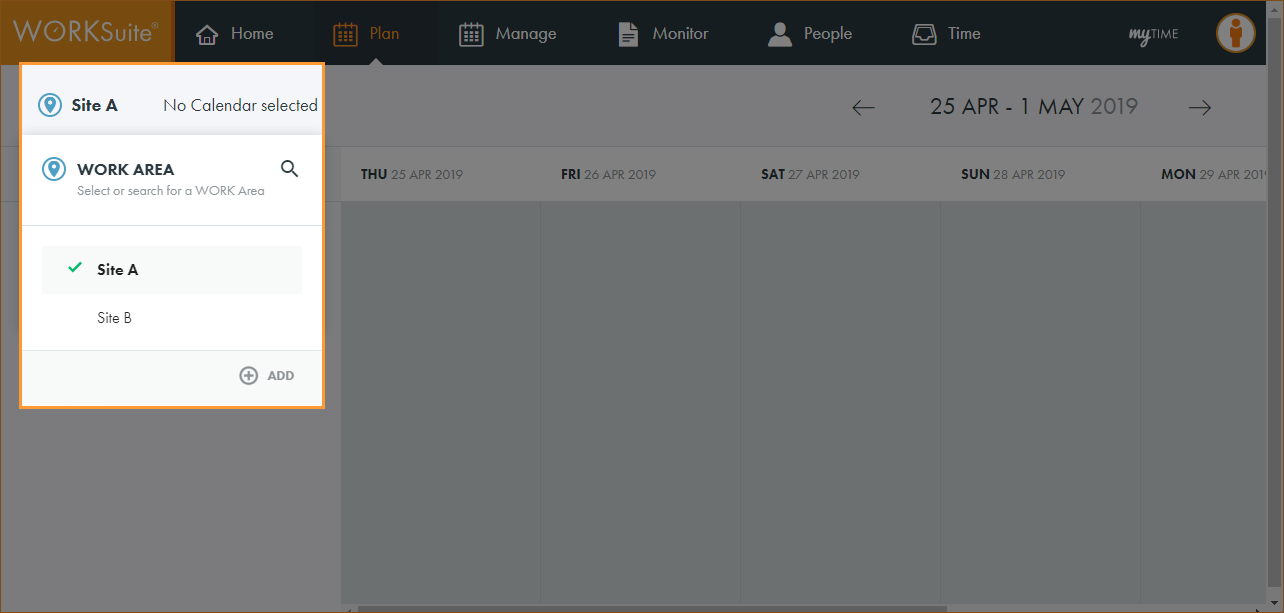
Note: By default, your previously selected work area is preselected.
- Click No Calendar selected or the calendar name displayed and select the calendar that you want to work with:
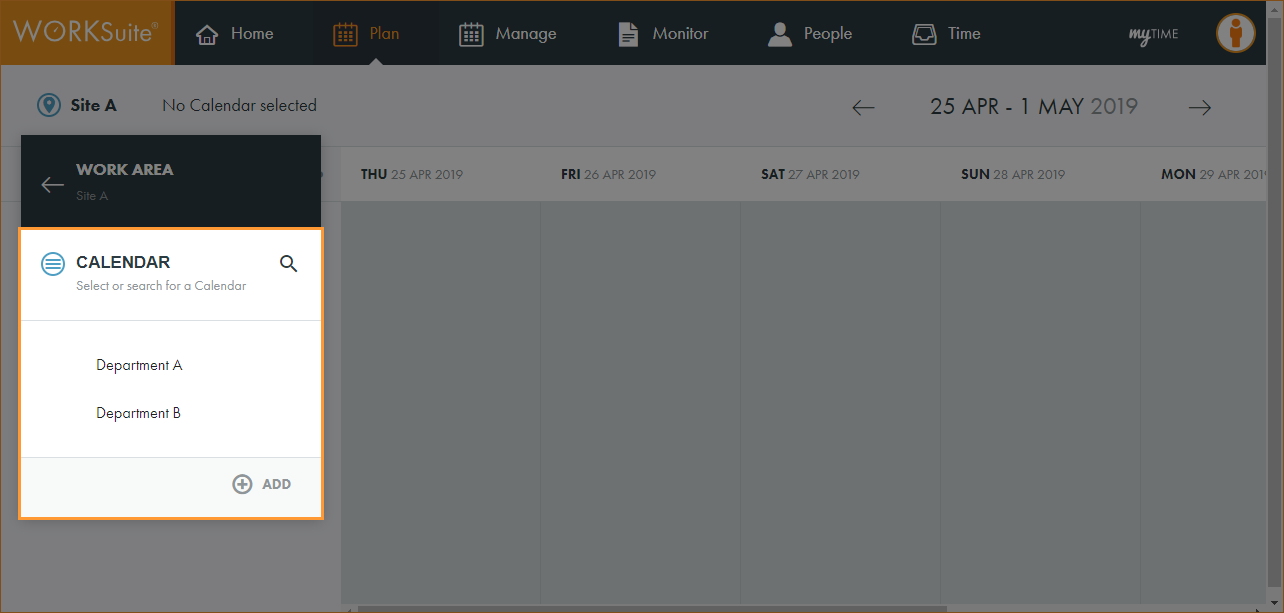
Note: By default, your previously selected calendar is preselected.
- Click …:
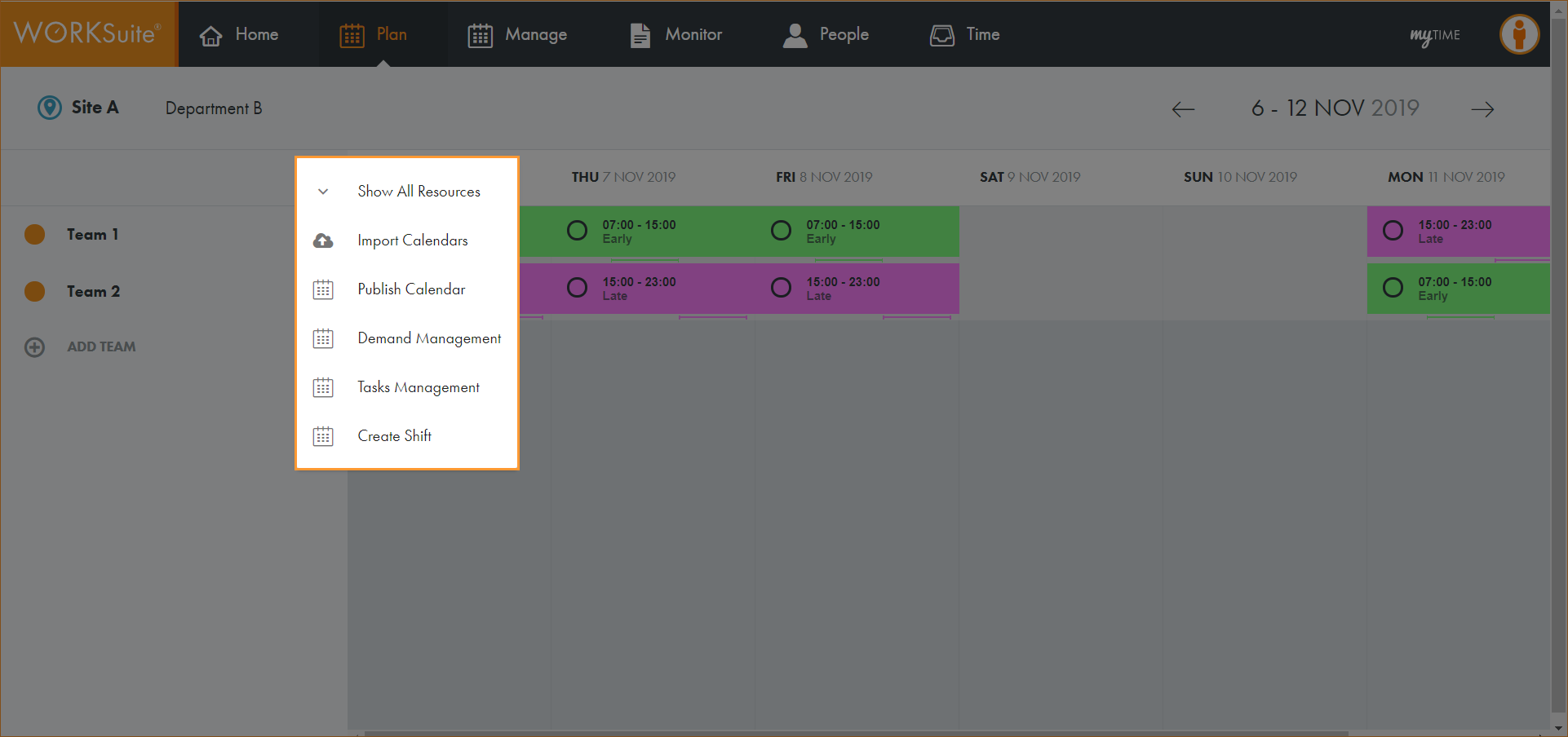
- Select Import Calendars.
A popup window is displayed:
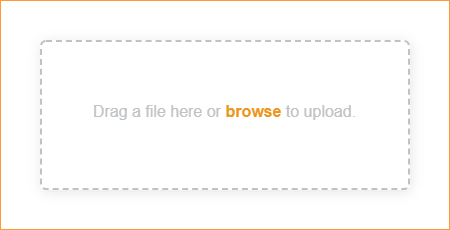
The import file needs to be in a specific format. Click here to see an example.
This file can be generated using scheduling software. Alternatively, contact WTS Support for help in generating the file.
- Once the import file is ready, either:
- Drag the file into the popup window.
- Click browse to select the file.
or
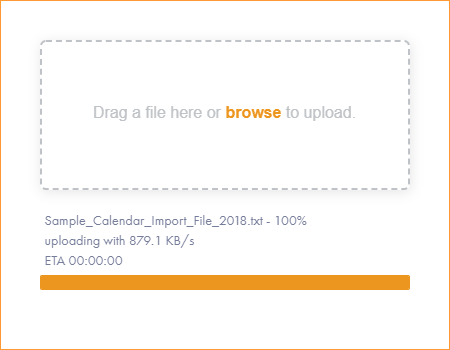
- Click away from the popup window when the upload indicates 100%.
- Refresh the screen to display the team and shift pattern:
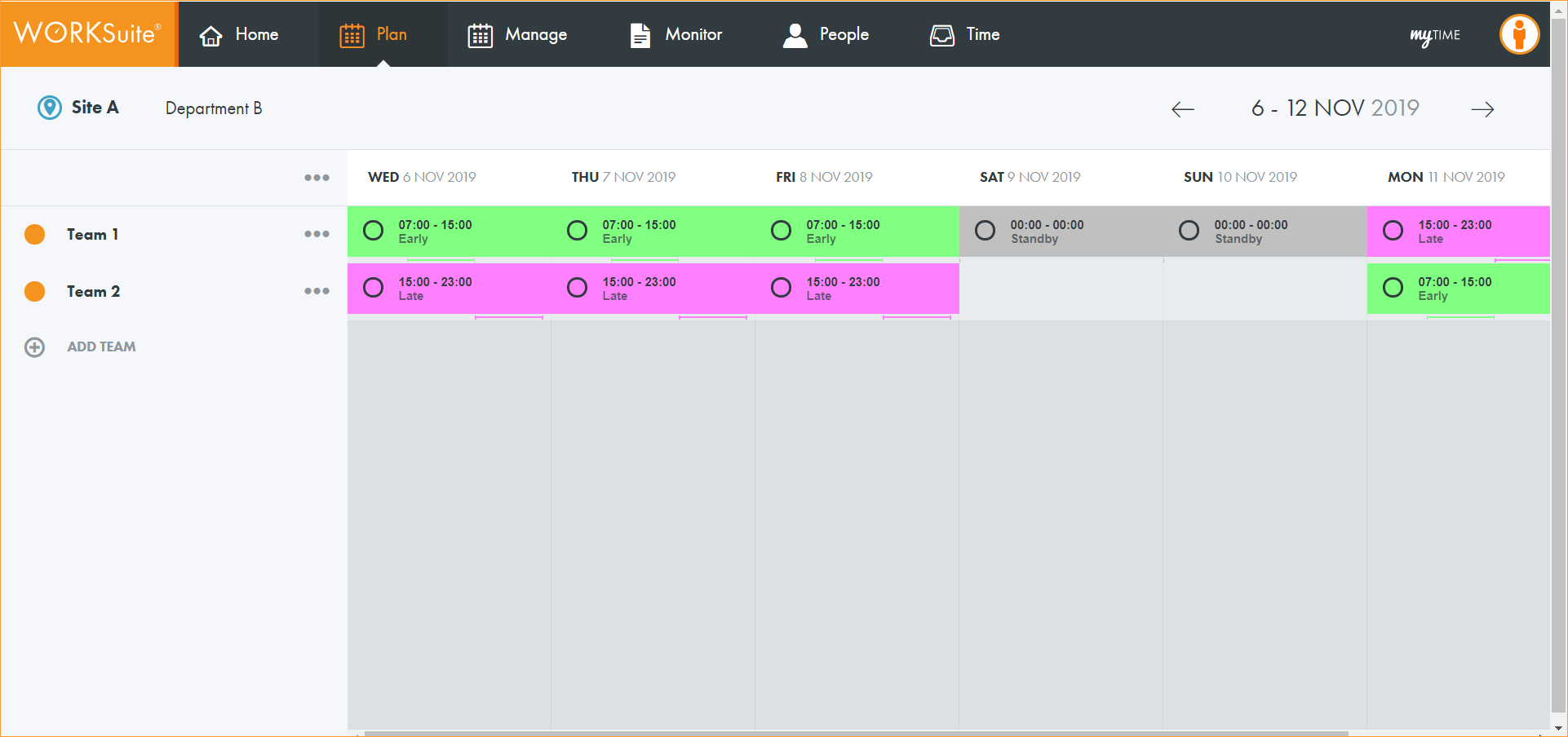
- Each team is displayed on a separate line.
- Each shift name is displayed a different colour for useful at-a-glance viewing.
-
The times of each shift is displayed.
- A ‘worm’ under each day in the calendar identifies the hours in the shift.
- Standby shifts are greyed out. Once published employees with standby shifts will be aware that they might be asked to work but are not yet scheduled.
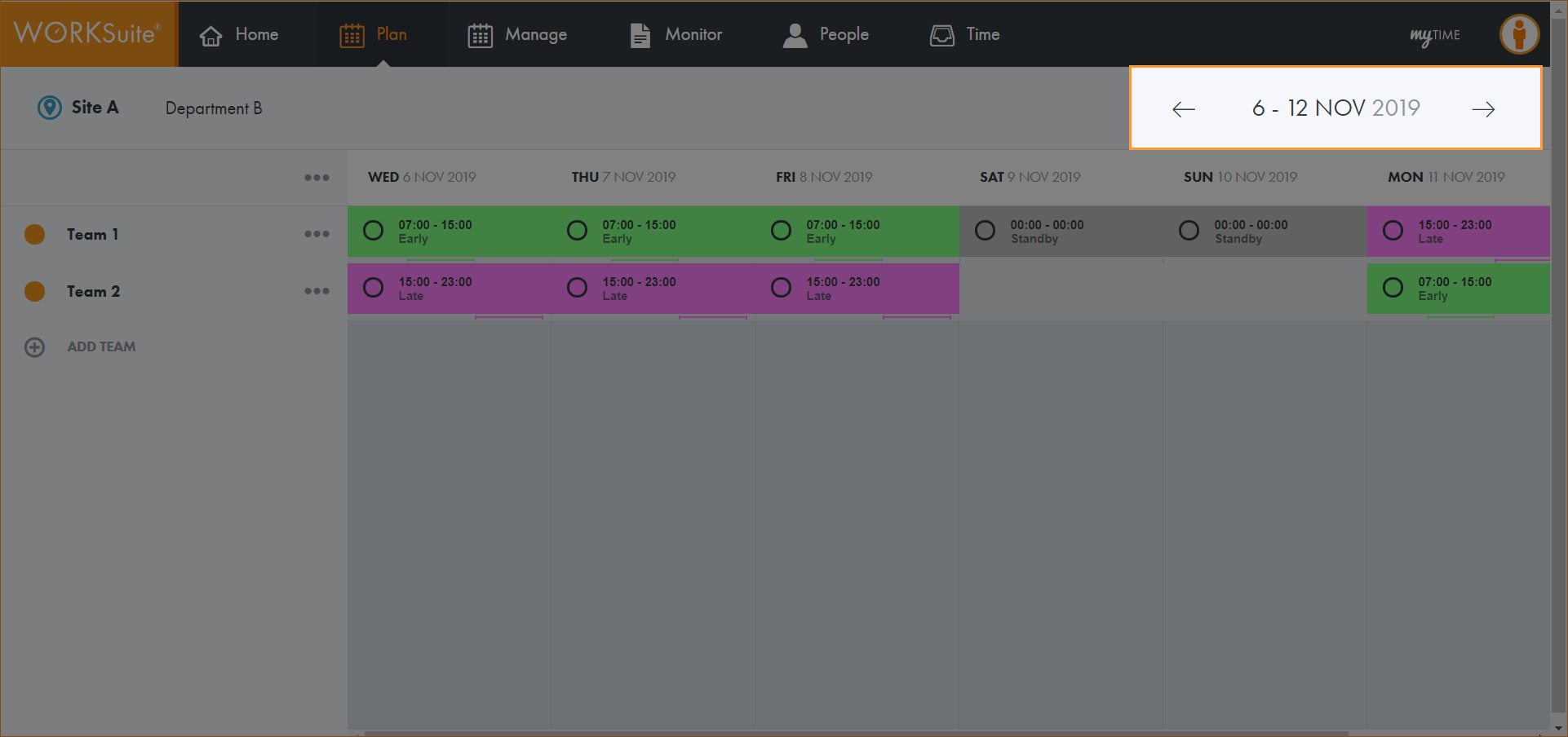
- Use the date selection buttons in the top right to select the week that you want to view:
- You are now ready to add new resources (employees) to your team.